
Your recipes, meal plans, and programs are where members spend time. The community forum is built to sit next to that content--not as a separate chat app. Members can open discussions from a recipe, reference content inside any post, and discover more of your library through conversation. You can also run public channels alongside Restricted categories reserved for specific access levels.
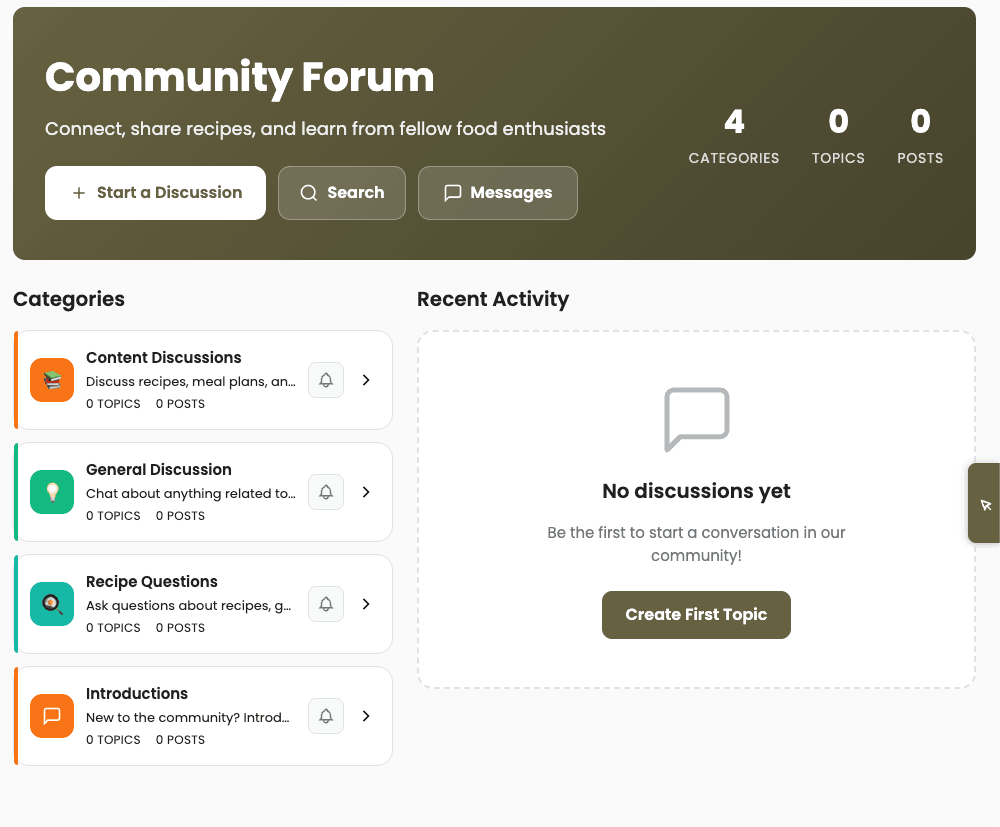
Why the forum lives next to your content
Generic forums drift off-topic and away from what you sell. Member Kitchens ties discussion to what you publish: cooking questions on the recipe members are viewing, swaps on the meal plan they are following, tips on a resource you just released. That keeps engagement inside your branded app and turns conversation into clicks back into content.
For you, the forum is a retention layer--members help each other, you moderate in one place, and every linked recipe or plan is another path into your catalog.
Turn it on and shape the space
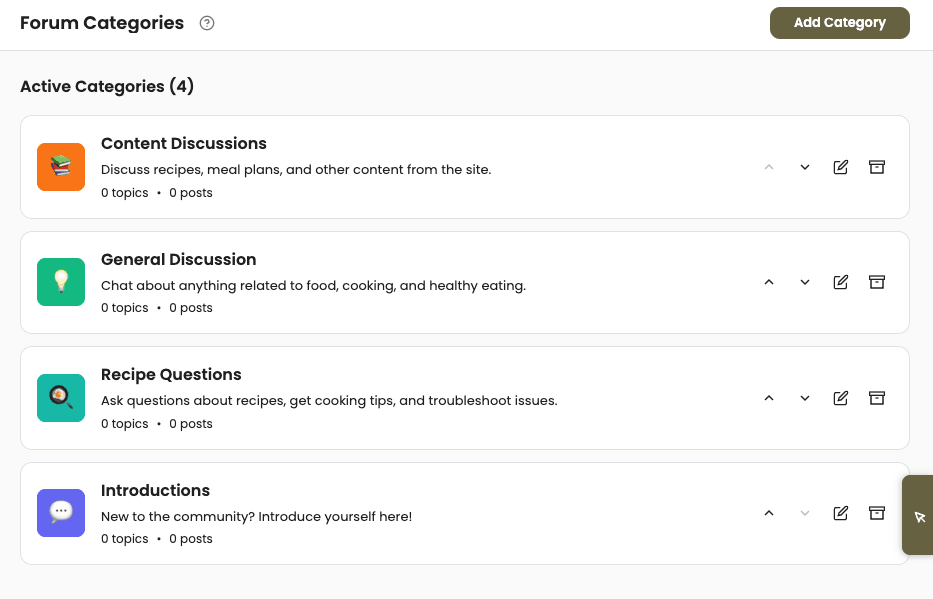
Start in App Station → Features → Community.
Enable the forum on the Community home screen if it is not already on.
Open Manage Categories to create channels (for example General, Meal prep tips, VIP coaching). New tenants also get a Content Discussions category for threads started from content items.
Open Settings to set Forum Visibility (Public--anyone can browse, login required to post--or Members Only--only subscribed members), moderation mode, and toggles such as Content References (allow @ mentions to recipes, meal plans, and more).
Forum-wide rules apply to every category. Category-level rules (below) let you go further for private or premium-only spaces.
Private and reserved channels (category access)
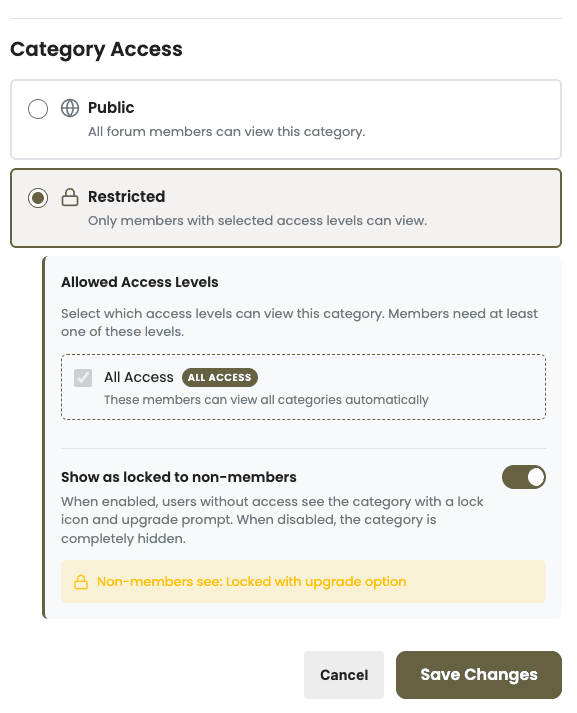
When you edit a category under Manage Categories, the Category Access section controls who can open that channel.
Public -- All forum members who can access the forum can view this category.
Restricted -- Only members with at least one of the selected Allowed Access Levels can view topics and post. If you assign multiple levels, a member needs any one of them (OR logic)--useful when VIP and Coaching tiers should share a private room.
For members who do not qualify, choose how the category appears:
Show as locked to non-members -- The category stays visible with a lock cue so free members see what they could unlock by upgrading.
Turn that option off to hide the category completely from anyone without the right access level.
Typical setups:
Public “General” plus Restricted “VIP Kitchen” tied to your top subscription access level.
Restricted coaching circle for a single access level, hidden from everyone else.
Leave Content Discussions public so content-linked threads stay easy to find, while premium conversation happens in restricted categories.
Link content inside any post (@ mentions)
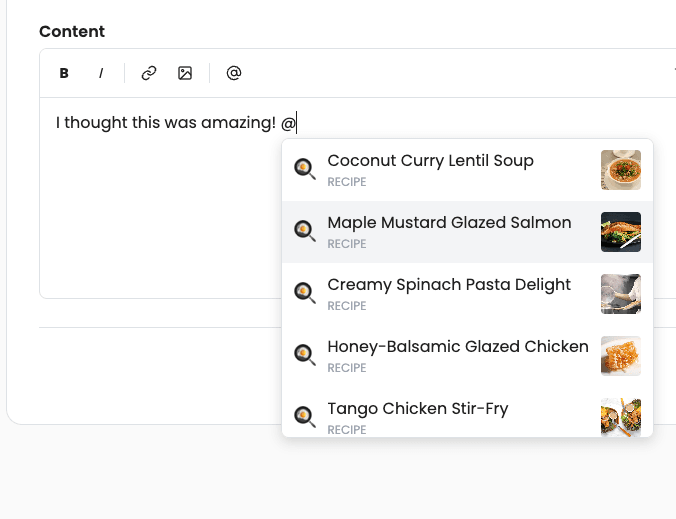
In any topic or reply, members type @ to search and attach your content. Supported types include recipes, meal plans, resources, challenges, blog posts, and other forum topics. With Content References enabled in Settings, references render as styled mention tags in the post and as mini-cards below for one-tap navigation.
The mention picker respects access levels: members only see content they can actually open, so links stay trustworthy and you avoid teasing locked items they cannot view.
Encourage @ links in welcome topics, weekly prompts, and replies--“What did you cook from this week’s plan?” with two or three attached recipes is a simple habit that boosts library usage.
One-click threads from a recipe (or any content item)
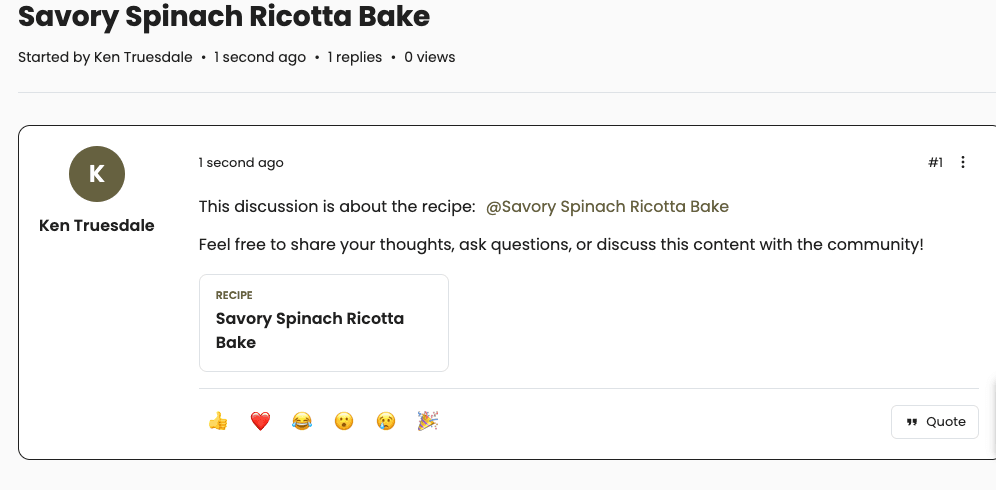
On content detail pages, Discuss in Community starts or resumes a dedicated thread:
First click creates a topic in Content Discussions with an automatic reference to that item.
The content record links back to the topic so the same button becomes View Discussion with a reply count when activity exists.
Members land in the forum with context already attached--no copy-pasting URLs.
Breadcrumbs when moving between forum and content keep the discussion easy to return to, so the thread and the recipe (or plan) feel like one experience.
Put discussion on the page members already use
Surface the same actions through Pages & Menu → Content Layouts (Page Builder for detail templates):
Content Comments -- Comments plus optional Discuss in Community on the same block.
Discuss in Community -- Standalone block when you want forum integration without inline comments.
Configure discuss on your recipe and meal plan layouts once; every item using that layout gets the button. That is how discussion becomes part of the cooking flow instead of a menu item members forget to open.
Moderation without leaving your workflow
When conversation picks up, use App Station → Member Interactions → Community Moderation:
Approval Queue when you run Pre-Moderation.
All Posts to hide, restore, or review published content.
Reports for member-flagged posts.
Choose moderation in Community → Settings: No Moderation, Post Moderation (publish immediately, moderate after), or Pre-Moderation (hold new topics and replies until approved). Admin-authored posts bypass the queue so your team can seed discussions without approving itself.
How to launch it with your catalog
Enable the forum and confirm Content References is on.
Add Discuss in Community to your main recipe Content Layout.
Create a public category for general chat and a Restricted category for your premium access level if you run tiered subscriptions.
Publish a pinned welcome topic in General with @ links to three flagship recipes.
Open one flagship recipe as a member, click Discuss in Community, and post the first question so others see the pattern.
Optionally enable forum notifications under App Station → Features → Engagement so members return when someone replies.
When the forum is tied to content and access levels match how you sell, discussion reinforces your library instead of competing with it.