
Members never see “an ingredient model.” They see whether the shopping list has one line for garlic or four, whether macros on a meal plan look believable, and whether “chicken” search actually finds the right recipes. Everything downstream runs on how seriously you treat ingredients as shared data--not as free text typed into each recipe.
Not sure where recipes come from at scale? Start with document import from PDF, Word, or WPRM JSON, then let the shared library handle nutrition and shopping lists.
Your catalog runs on ingredients, not recipe titles
When the same item appears under different names--chicken, chicken breast, boneless skinless chicken--you pay for it everywhere:
Shopping lists double or triple the same aisle item.
Nutrition drifts because each line might use a different basis or no basis at all.
Filters and presets that include or exclude ingredients miss recipes you care about.
Member Kitchens attaches every recipe line to a canonical ingredient in your library. Recipes reference rows; the platform merges, converts units, and calculates nutrition from that shared truth.
One library: defaults, custom ingredients, and overrides
After your ingredient library is in shape, configure how members filter recipes--including ingredient include/exclude--in recipe search filters.
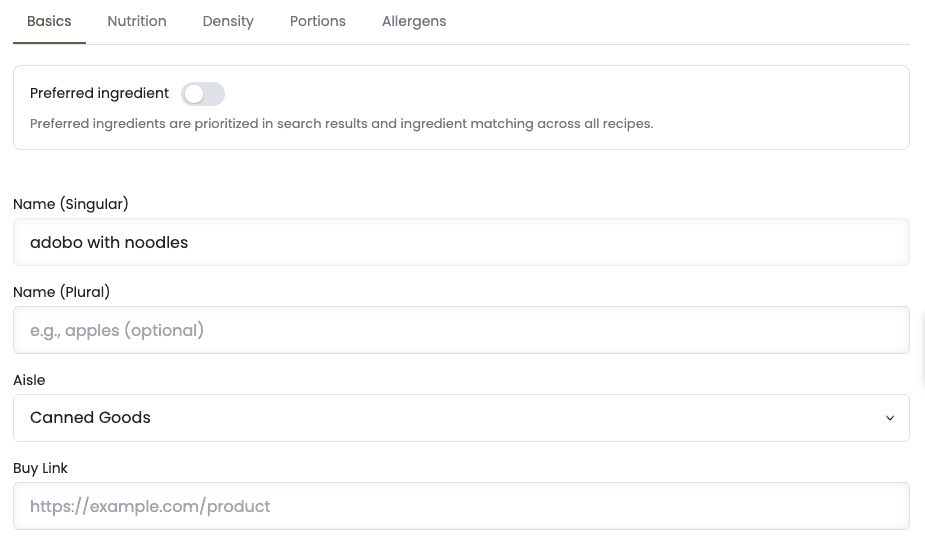
You work with three ideas--none of them require a computer science degree:
App default ingredients -- A professional starter set (sourced from standards like USDA-style data) shared across apps. You do not rebuild garlic from scratch.
Custom ingredients -- Rows your team owns: house blends, branded SKUs, anything that is not in the global list. Only admins create these; members pick from the library when they customize recipes, they do not spawn new catalog entries.
Tenant overrides -- Tweaks to an app default without duplicating it: call it Honeycrisp apple instead of apple, set your aisle, adjust nutrition per 100 g, add density so 1 cup converts correctly, or define portions so 1 clove scales. Change the override once; every recipe using that ingredient inherits the fix.
When you need a genuinely different item (organic flour vs. all-purpose flour as separate products), create a variant--a new custom ingredient copied from the source--rather than fighting one row with contradictory data.
Manage the catalog under App Station → Features → Ingredients. Open any ingredient for the full editor (Basics, Nutrition, Density, Portions, Allergens) or use Edit ingredient from a recipe when you are fixing dinner in context.
Creators with 100+ recipes average 786 unique ingredients--see the pantry paradox data on why structured ingredients matter at scale.
Shopping lists and meal plans stay sane
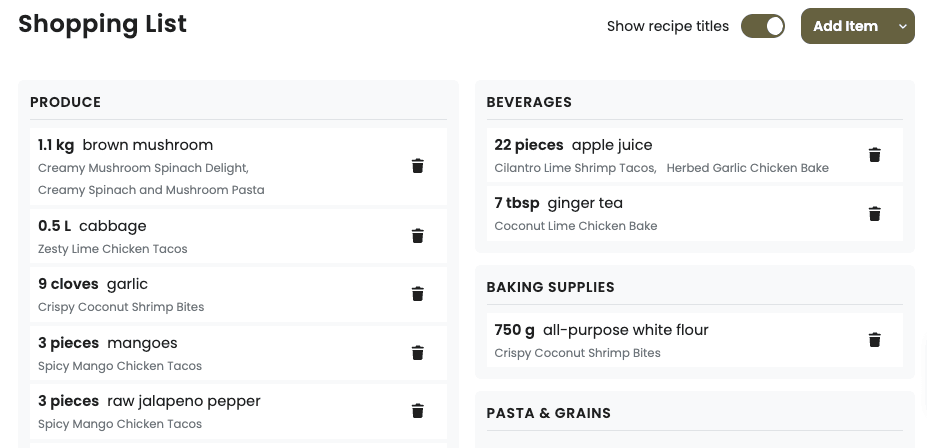
Meal plans aggregate ingredients across sessions. Shopping lists combine lines that share the same ingredient and aisle, so members shop once--not once per recipe that mentioned “garlic.”
Where you have configured portions (piece, clove, slice) and density (cups to grams), the system can bridge count and weight lines instead of leaving “1 chicken” and “200 g chicken” stranded on separate rows. Yield-based recipes scale amounts from the yield you scheduled, so prep and shop stay aligned with how you actually cook.
None of this requires members to understand conversions. They get a shorter, clearer list because your library was set up like a professional kitchen’s spec sheet.
Nutrition members can trust
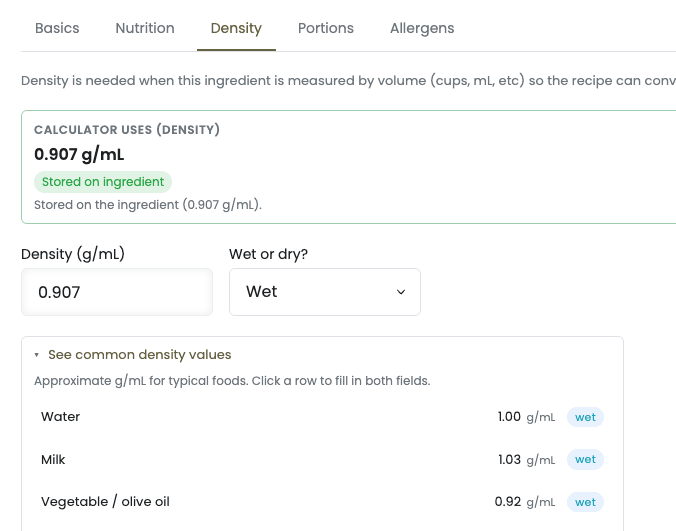
Recipe nutrition is calculated from ingredients unless you override at the recipe level. Each ingredient declares what its numbers mean--serving size and unit (for example per 100 g or per 1 oz). Custom ingredients can use the same unit flexibility; the calculator normalizes recipe amounts to that basis.
Density matters when recipes say 1 cup flour. Portions matter when they say 1 clove garlic or 2 slices bread. In Edit ingredient or the full ingredient editor, the Calculator uses preview shows what the system will actually use for density, per-piece weight, and serving size--including when a value comes from your override or a sensible fallback.
Fix a systematic gap (missing density on flour, wrong serving basis on olive oil) once at the ingredient, then spot-check a few recipes and a meal plan day summary. That is the ROI of an expansive library: fewer one-off recipe patches.
Import and curate without polluting the library
Imports and URL extraction suggest matches to existing rows instead of inventing a new string per recipe. When the matcher creates something you have not reviewed yet, it can land as uncurated--hidden from member pickers until you accept it in Ingredients (use the Curation view: Curated only vs. Uncurated only).
Mark staples as preferred so your autocomplete surfaces your standards first. Admins stay in control of what enters the catalog; members attach existing ingredients when they personalize recipes, so their swaps never fork your global data.
Fix and find at catalog scale
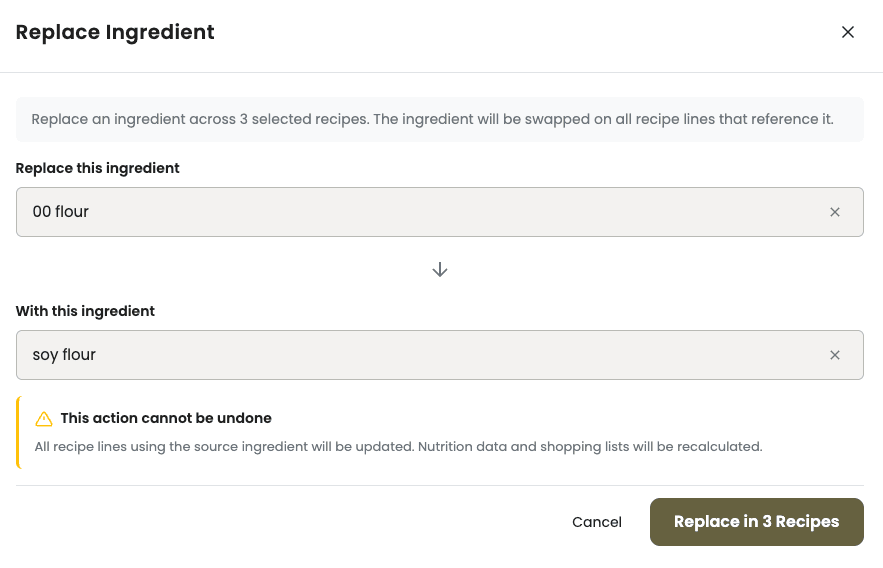
Edit ingredient from any recipe line opens the same nutrition, density, portion, and allergen tools--ideal when a member report says “this macro looks wrong.”
When you rename or consolidate--for example standardizing on one chicken breast row--use bulk actions in Content Library to replace one ingredient with another across selected recipes instead of editing hundreds of cards by hand.
App Station → Features → Filters → Saved Presets can include or exclude ingredients (“high protein, no peanuts,” “without coconut”). Those presets only work because ingredients are structured, not because someone remembered to tag every title.
What to do this week
Open Ingredients and list your top ten most-used items across meal plans.
For each: confirm aisle, serving basis, and at least one of density or portions if recipes use cups or pieces.
Override names on defaults where your brand voice matters (Greek yogurt (5%) vs. generic yogurt).
Add one custom ingredient you have been typing ad hoc in recipe notes.
Run a meal plan shopping list and confirm duplicates collapsed.
Optional: one Saved Preset that includes or excludes a key ingredient to test discovery.
You do not need to tune the entire library on day one. You need a library mindset: recipes point at shared ingredients, and the platform does the professional work--merge, convert, calculate--so your members trust what they cook, shop, and track.
Consistent tags and ingredients power Saved Presets--the filters members tap to follow your program rules.