
Your recipe calls for a garnish, a dairy swirl, or a “nice to have” topping. Some members want it; others skip it every time. If every line is treated as required, shopping lists fill up with items they never buy--and nutrition numbers stop matching what they actually cook.
Optional ingredients let you keep one recipe while members choose what to include. Mark a line Optional in the editor; on the member recipe it shows dimmed with a + Optional chip. When they include it, the chip becomes ✓ Included, and that ingredient joins shopping lists and calculated nutrition.
The problem
Flexible cooking is normal. Guides like The Kitchn’s take on missing ingredients and Serious Eats on adaptive meal planning treat recipes as outlines you can adjust--not rigid shopping mandates. Membership apps often force the opposite: every ingredient is required, or you maintain multiple recipe copies.
Lists get noisy. Optional toppings and “if you have it” items inflate grocery totals and meal-plan shopping lists.
Nutrition drifts. Base macros include ingredients members routinely omit, so filters and daily totals feel wrong.
Duplicate recipes. Creators publish “with cheese” and “without cheese” versions instead of one flexible card.
No shared opt-in. Notes saying “(optional)” in the name do not exclude the line from shopping or nutrition automatically.
The approach
In Member Kitchens, optional is a first-class ingredient setting--not a note in the title.
Admin: Expand an ingredient in the recipe editor and turn on Optional. Help text: shown on the recipe but excluded from shopping lists and nutrition unless the member includes it.
Member default: The line stays visible (dimmed) with a + Optional chip. It is left out of shopping lists, calculated nutrition, cooking-mode ingredients, and PDF lists until included.
Member include: Tap the chip to ✓ Included. That choice is saved per member and recipe (same modification system as swaps and deletes). Included optionals behave like regular ingredients for lists and nutrition.
Guests / no customization: Tapping the chip shows the upgrade prompt. Admins get an informational toast--selections are member-specific, so preview as a member to test.
Set it up
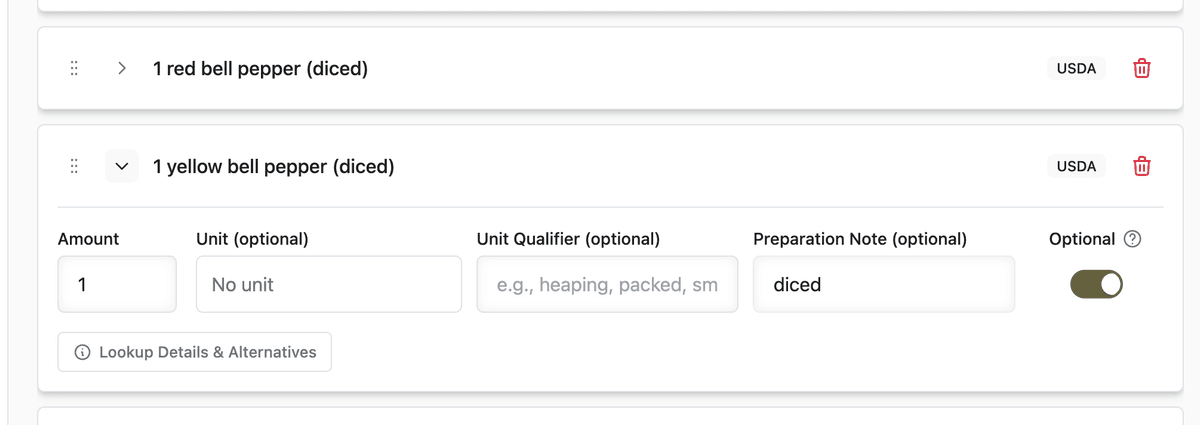
Open App Station → Content Library and edit a recipe.
In the ingredients panel, expand the ingredient you want to make optional.
Turn on the Optional switch (use the help icon for a short reminder of shopping-list and nutrition behavior).
Save or let autosave finish, then open the recipe as a member (or a test member account).
Confirm the line shows dimmed with + Optional. Tap once to include (✓ Included), then check shopping list and nutrition if those features are on.
Optional: add the same recipe to a meal plan and regenerate the shopping list--non-included optionals should stay off the list.
Before and after
Without optional ingredients
Every garnish and add-on hits every member’s list and macros.
You maintain variant recipes or bury “(optional)” in the ingredient name with no real exclusion.
Members who skip the item still see it in shopping totals and nutrition.
With optional ingredients
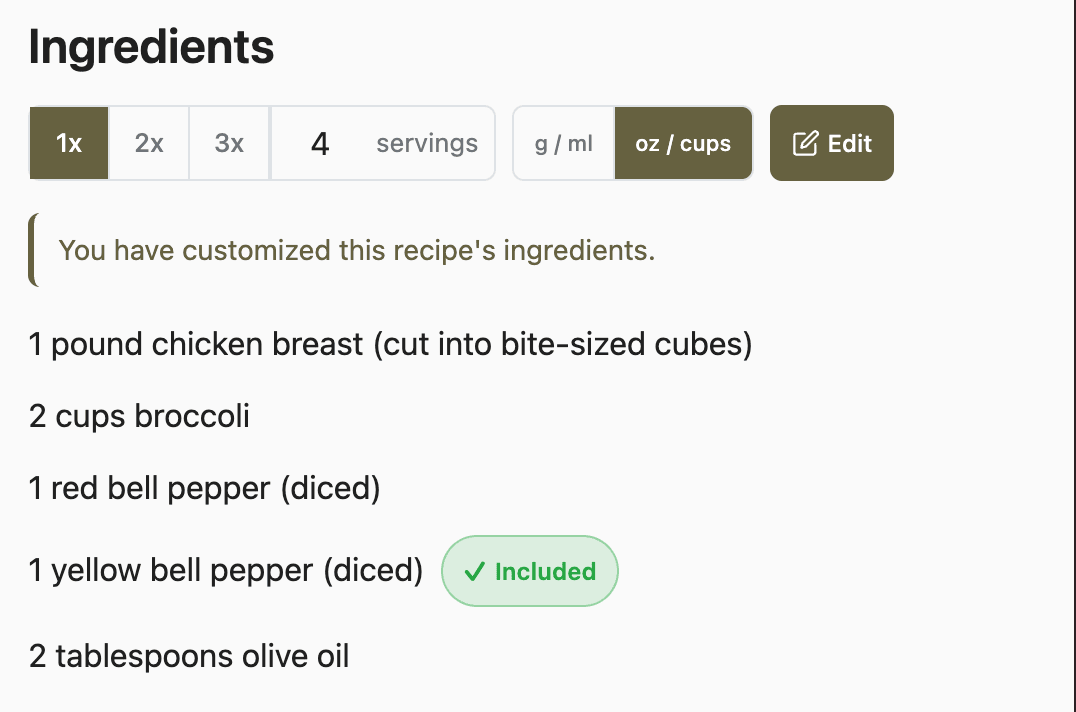
One recipe covers “base” and “with extras.”
Defaults stay lean; members who want the add-on opt in with one tap.
Shopping lists and calculated nutrition follow each member’s choice, including meal-plan regeneration.
What to do next
Review recipes where you already wrote “(optional)” in the name--flip the real Optional switch instead.
Pair this with ingredient library, shopping lists, and nutrition so included optionals resolve cleanly when members shop.
For members who swap dairy or proteins rather than skip them, see recipe swap options.
Watch the optional ingredients demo for a short screen recording of editor → member chip → include.