
Once your library grows past a few dozen recipes, scrolling stops working. Members need shortcuts--under 30 minutes, high protein, gluten-free--without learning your entire tag system. You configure those shortcuts from one admin page, not recipe by recipe.
This walkthrough covers App Station → Features → Filters: three tabs that control how members search and filter recipes.
What you are customizing
Recipe filtering has three admin-controlled layers:
Recipe filter tab -- which accordion sections appear in the member filter panel (Ingredients, Tags, Nutrition, Difficulty, Time & Servings), their order, and per-section options
Saved Presets -- named, multi-criteria bundles (tags + time + difficulty + nutrition + ingredients) members apply with one chip
Quick Filter Chips -- simpler single-dimension chips for nutrition, time, or servings in the advanced search UI
New tenants often arrive with sample presets (for example quick weeknight dinners or high protein). Treat those as starting points--rename and replace them with language your members actually use.
Where to start
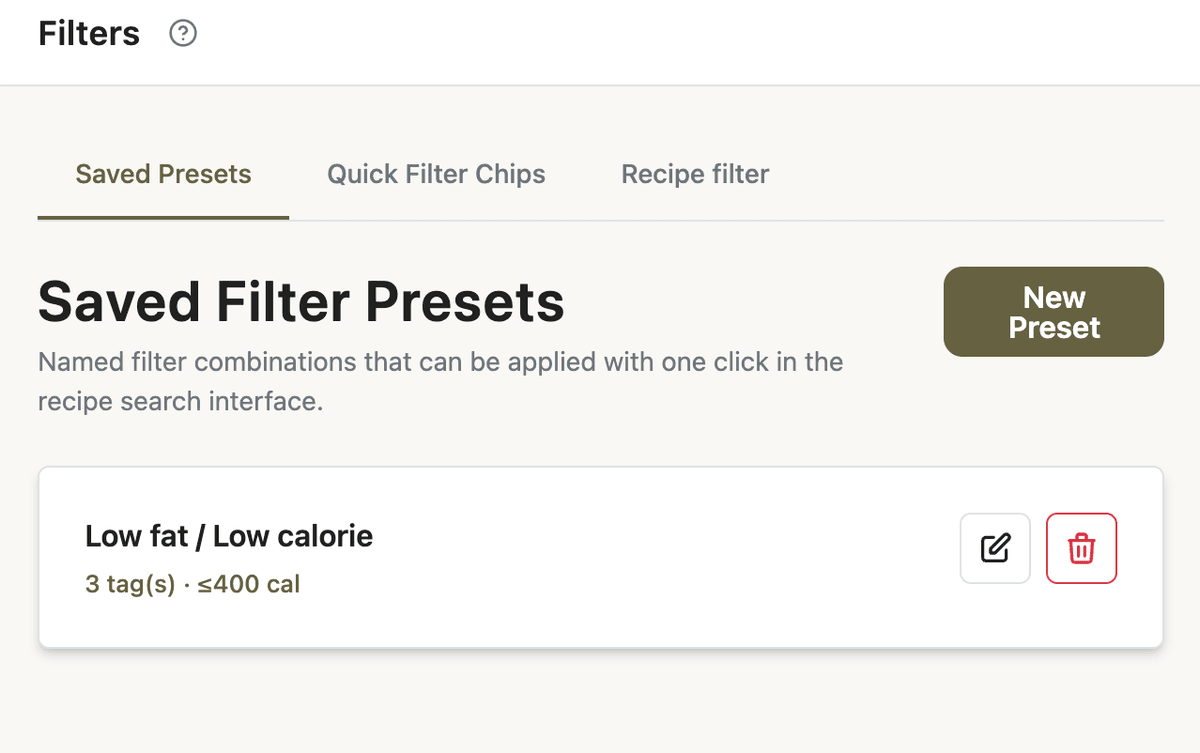
Open App Station → Features → Filters. The page intro explains the goal: manage saved presets and quick chips so members find recipes faster.
Work the tabs in this order: Recipe filter (panel shape) → Saved Presets (your branded shortcuts) → Quick Filter Chips (optional fine-tuning).
Shape the filter panel
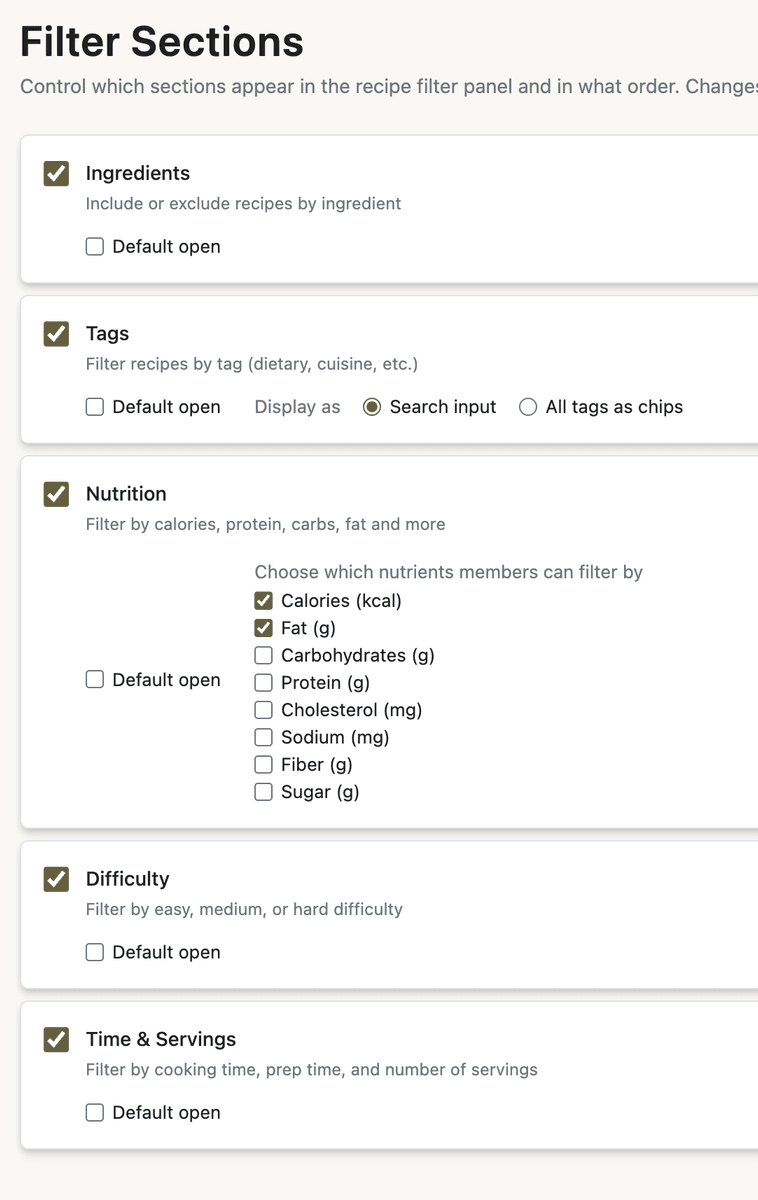
Select the Recipe filter tab. Under Filter Sections, each row controls one accordion section members see in the advanced recipe filter.
For each section you can:
Show or hide the section--disabled sections are removed entirely, not just collapsed
Reorder with move up / move down so the fields your audience cares about appear first
Mark Default open so that section starts expanded instead of collapsed
Section-specific options:
Tags -- Display as Search input (autocomplete) or All tags as chips if you want every tag visible at once
Nutrition -- choose which nutrients members can filter by (calories, fat, carbs, protein, cholesterol, sodium, fiber, sugar). Hide nutrients you do not publish consistently
Changes save automatically and apply to the member-facing filter only. Admin tools (preset builder, meal plan recipe picker) still show all sections so you cannot lock yourself out while editing.
If your ingredient library is thin, lead with Tags and Time & Servings; lean on the ingredient library before pushing hard on ingredient-based filters.
Create Saved Presets
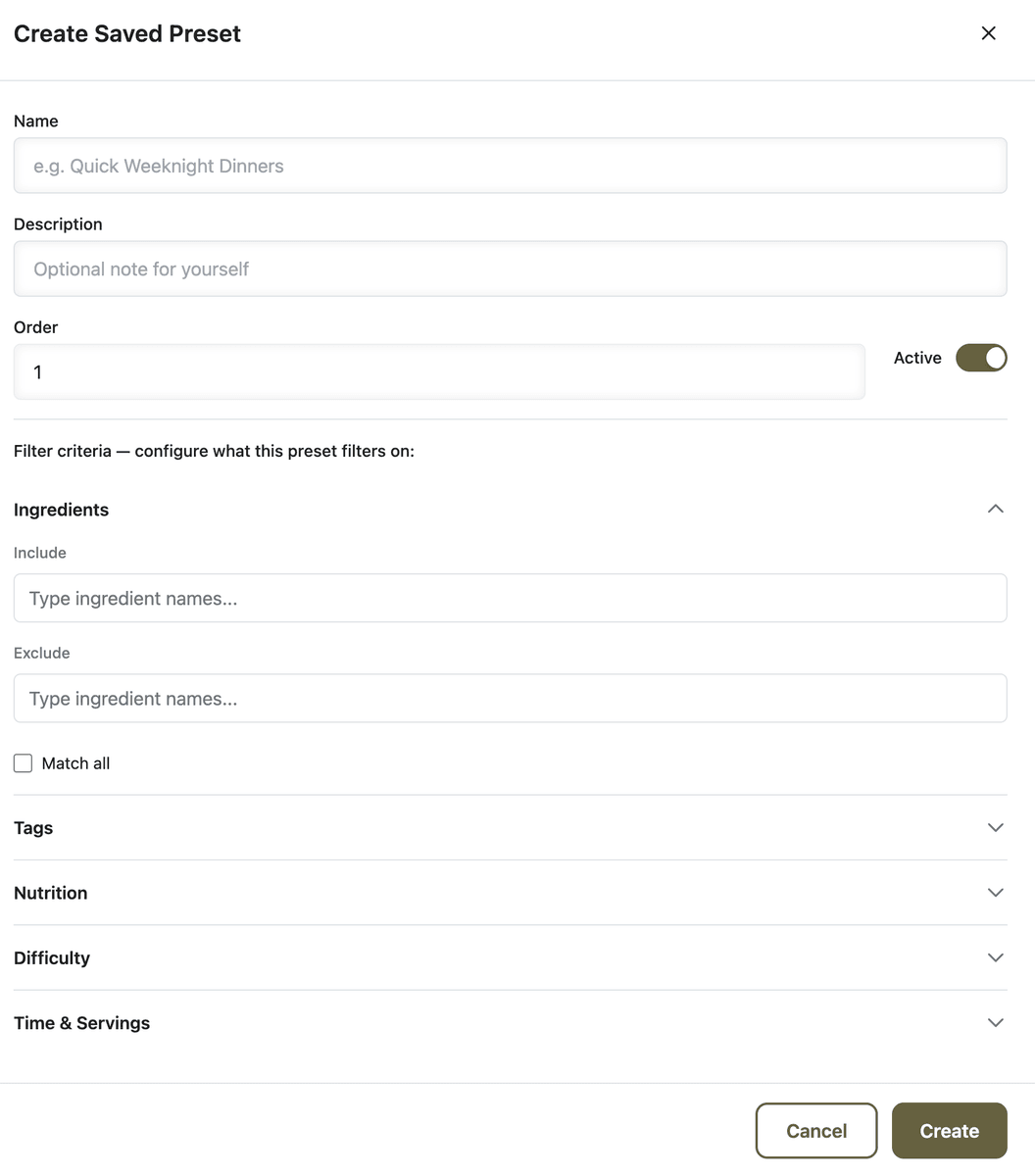
Open the Saved Presets tab and click New Preset.
Enter a name members will recognize--Quick weeknight dinners, Meal prep friendly, Low carb.
Optionally add a short description (admin reference only).
Use the embedded filter form to set at least one criterion: tags, include/exclude ingredients, difficulty, cook or prep time, servings, or nutrition ranges.
Save. The preset appears in your list where you can edit, delete, reorder, or deactivate it.
On the recipe library, members see saved presets as a horizontal row of chips above the accordion filters. Clicking a chip replaces the current filters with that preset’s criteria--one tap, full bundle. If they tweak filters after applying a preset, the UI shows the chip as modified.
Presets only work when recipes carry the data you filter on: tag recipes consistently, keep nutrition cached where you use nutrition filters, and import or build catalog depth before expecting rich results.
Tune Quick Filter Chips (optional)
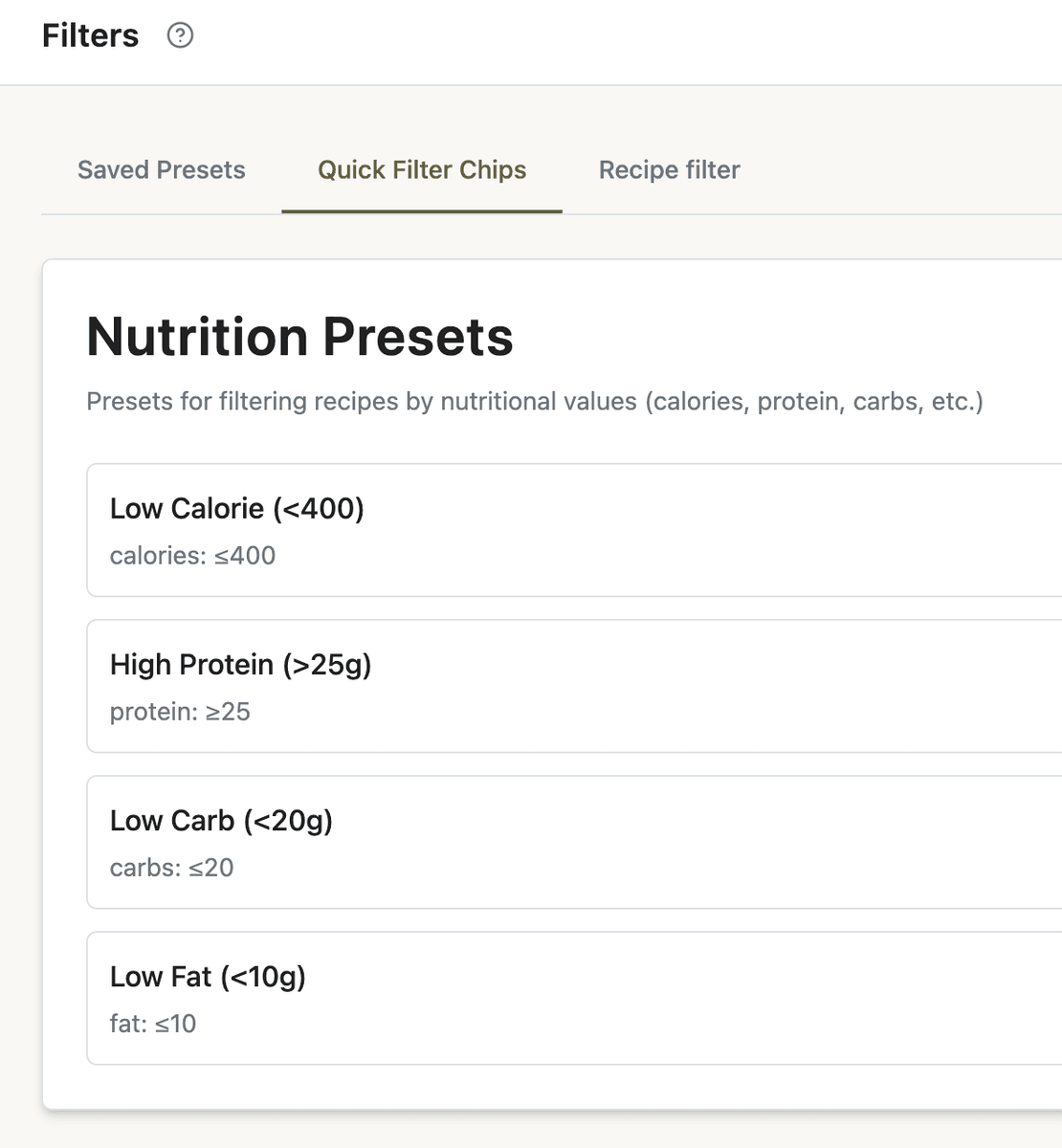
The Quick Filter Chips tab groups simpler chips into three categories:
Nutrition Presets -- one nutrient field with min/max (for example Low Calorie <400)
Time Presets -- cook and/or prep time bounds (for example ≤30 min)
Servings Presets -- serving count ranges (for example 1–2 or 5–6)
Click Add in a category to create a chip, or edit existing defaults. Disable or delete chips that clash with your Saved Presets or confuse members with duplicate labels.
Use Saved Presets for branded combinations; use Quick Filter Chips for fast single-dimension shortcuts in advanced search.
What members see
Card layouts control how results look; filter presets control how members narrow the library before they browse.
On the recipe library (and anywhere the advanced recipe filter opens), members get:
Your Saved Presets chip row first
Then only the accordion sections you enabled on the Recipe filter tab, in your order
Quick Filter Chips where that UI surfaces them alongside advanced search
Pair a polished browse experience with filters: after members narrow results, recipe card layouts control what they see in the grid. If the library lives on a custom page, confirm search and grid blocks in the Page Builder point at the same recipe catalog.
Note: Presets that filter on difficulty, cook time, prep time, or servings behave differently for lightweight Bite items (snacks without full recipe metadata). Tag- and nutrition-based presets apply when that data exists on the item.
Quick-start checklist
Features → Filters → Recipe filter -- hide sections members never use; set Default open on Tags or Time & Servings.
Create one Saved Preset that matches your core promise (for example easy + ≤30 minutes).
Preview the member library: apply the preset, confirm results look right.
Add 2–3 more presets for your main audiences (meal prep, high protein, dietary tags).
Audit tags on recipes so preset criteria actually match content.
Optional: trim or rename Quick Filter Chips so they complement--not duplicate--Saved Presets.
After sections and quick chips are configured, publish your curation as Saved Presets--one-click bundles members recognize.
Filters should sound like your coaching, not a database admin screen--the names members tap are part of your product voice.