
You already have recipes--in a cookbook PDF, a Word manuscript, or a WordPress site built with Recipe Maker. The slow path is retyping every ingredient and step into a new platform. The fast path is Recipe Import: upload the file, review what the system extracted, and bring selected recipes into your Content Library in one pass.
This post covers three upload types: PDF, DOCX (Word), and WPRM JSON. Spreadsheet and plain-text bulk import is a separate workflow--we will cover that in a follow-up post.
Why document import gets you live faster
Members judge your app on whether the library feels real on day one. An empty catalog makes every other feature--meal plans, shopping lists, favorites--harder to sell. Document import is available on all plans because getting content in is the biggest hurdle to retention.
You are not asking the platform to invent recipes. You are handing it files you already trust and turning them into structured recipes your app can search, filter, tag, and sell access to.
Where to start
Open App Station → Content Library and click Import from Files. That opens Recipe Import, where you can:
Choose File and Upload a supported document
See Supported Formats and daily limits for AI-processed files
Track progress in Recent Import Jobs and reopen any job to finish importing
Every format in this post uses the same front door--only what happens after upload differs (AI extraction vs. direct parsing for WPRM).
PDF, DOCX, or WPRM JSON--which should you use?
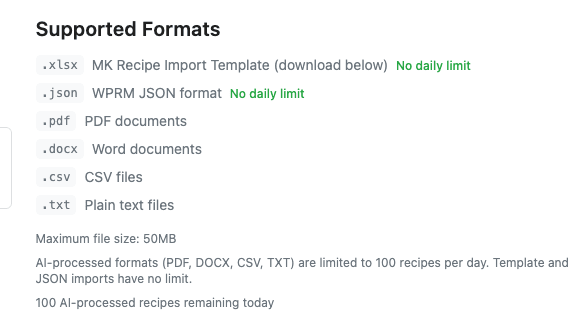
PDF (.pdf) -- Best when your source is a cookbook, meal-plan PDF, or exported ebook. The system uses AI to read layout and pull out titles, ingredient lists, instructions, times, and servings. Multi-recipe PDFs are supported; clearer structure (one recipe per page, readable text) improves results.
Word (.docx) -- Best for manuscripts, client handouts, or docs you already maintain in Word. Processing is AI-based, similar to PDF. Use DOCX when the source is editable text rather than a fixed layout.
WPRM JSON (.json) -- Best when you are migrating from WordPress Recipe Maker. Export your recipes as WPRM JSON and upload the file. The parser reads the structured export directly--no AI step--so jobs typically finish faster and do not count against the AI daily recipe limit.
All three formats accept files up to 50MB. AI-processed PDF and DOCX uploads share a configurable daily recipe limit per tenant; WPRM JSON imports are not subject to that AI cap.
What happens after you upload
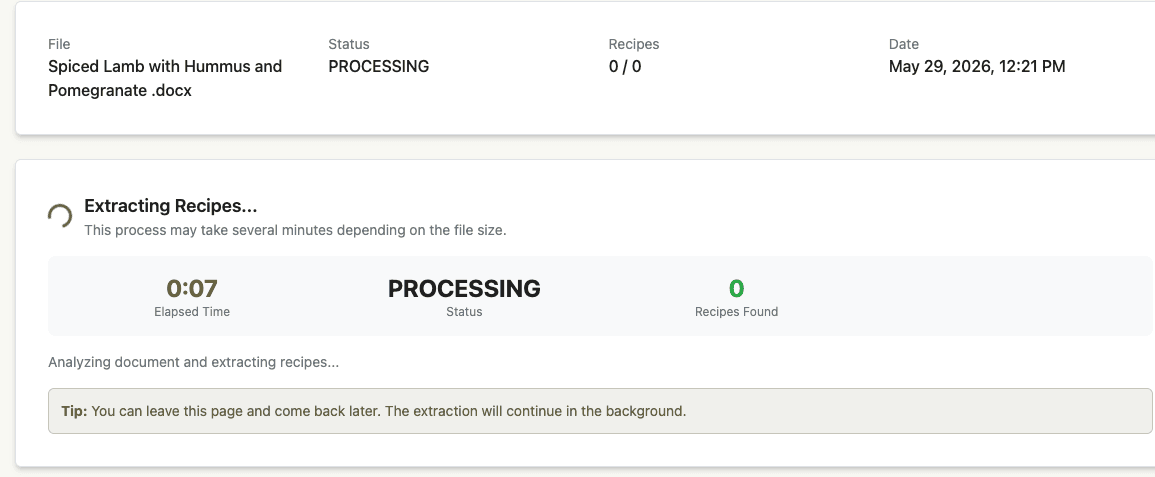
Each upload creates an Import Job. You land on the job detail page automatically after upload.
PDF / DOCX -- Status moves through processing while the extractor analyzes the file. Large files can take several minutes; the page shows progress such as pages analyzed and recipes found.
WPRM JSON -- Parsed directly from the export structure, without the AI vision pipeline.
Review queue -- Occasionally a low-confidence AI job is held for platform review before you can import. Most jobs reach an extracted state you can work with on your own.
If a job appears stuck after a long wait, use Retry Job to re-process the original file from scratch.
Review, select, and import
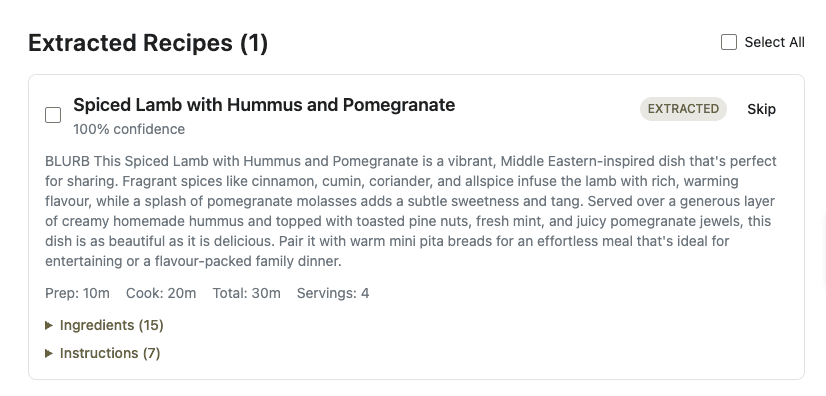
When extraction completes, you see a list of candidate recipes. For each one you can preview title, description, times, servings, ingredients, and steps before anything is written to your catalog.
Open the job from Recent Import Jobs (or right after upload).
Review each extracted recipe; expand ingredients and instructions to spot gaps.
Check the recipes you want and click Import Selected.
During import, ingredients are matched to your tenant ingredient library--the same shared catalog that powers accurate nutrition and merged shopping lists. Unmatched lines can become custom ingredients where appropriate.
Skip individual items you do not want; skipped recipes never enter the library.
Imported recipes appear in Content Library like any recipe you created manually. Open one, spot-check formatting, add images or tags, and publish when ready.
After import: ready for members
After import, add recipes to weekly schedule weeks without publishing them to the library--members discover them through This Week on your cadence.
Import fills the catalog; the rest of your stack makes it valuable:
Access -- Assign access levels so free preview, core membership, and premium tiers see the right recipes without duplicating content.
Discovery -- Use the Page Builder to add Content Grid blocks on home or library pages so new imports surface immediately.
Engagement -- Once recipes are live, members can favorite them, add them to lists, and (if you enable it) discuss them in community threads linked from recipe pages.
Tips for cleaner extractions
PDF and DOCX
Prefer selectable text over scanned images-only pages when possible.
Keep ingredient lists and instructions in clearly separated sections.
One recipe per page (or per clearly bounded section) helps multi-recipe files.
Expect to edit edge cases--unusual layouts, tables, or sidebars may need a quick pass in the recipe editor.
WPRM JSON
Export from WordPress Recipe Maker using the standard JSON export your plugin provides.
Ingredient groups and instruction groups from WPRM are preserved when present in the export.
Recipe Import is marked Beta on the upload screen. Results vary by source quality; if extraction misses the mark on a important file, contact support--we can often improve output or assist with a backend import.
Need to import hundreds of rows from a spreadsheet? That workflow--template, CSV, and structured bulk upload--is coming in a dedicated follow-up post.
Once you know the shape of a strong subscription recipe, see what 100 professional creators actually publish before you scale your import.
Quick-start checklist
Pick your source: one PDF chapter, a DOCX doc, or a WPRM JSON export.
Content Library → Import from Files → Choose File → Upload.
Wait for the job to finish extracting; open the job and review every candidate recipe.
Import Selected for the recipes you want; spot-check one imported recipe in the editor.
Set access levels and add a Content Grid on your home or recipes page so members see the new library.
Document import turns files you already have into a member-ready catalog--so you spend time launching and selling, not retyping garlic cloves.
Once recipes are in the catalog, add saved filter presets so members can jump to “quick dinners” or “high protein” in one tap.