
Premium recipes and programs should feel valuable--not invisible. When someone opens content they cannot access yet, Member Kitchens does not always show a blank wall. It shows a teaser: a partial preview of the detail page, plus a clear path to sign up, log in, or upgrade.
You control how much of that preview they see--block by block on each content layout--and the words on the upgrade prompt across your app. Together, that turns locked content into a conversion surface instead of a dead end.
What a teaser is (and when it appears)
A teaser replaces the full detail page when:
The item is set to Members Only (not Public or Assigned Only)
The viewer does not have the required access level--including guests who are not logged in
The member’s current access level has Show locked content in lists enabled so they can discover and open locked items (with a lock indicator) rather than having them vanish from grids
Assigned Only content is different: without an explicit grant, members do not see it at all--no teaser, no card in the library. Teasers are for tiered Members Only content you want people to discover and want to unlock.
Teasers are the guest rung of your ladder--pair them with signup, free tier, and trial steps so locked cards lead somewhere.
Teaser vs. full page: preview without giving away the product
Each content type uses a content layout (detail template) made of blocks--recipe header, meta, ingredients, steps, and more. On a full-access visit, every enabled block renders normally.
On a locked visit, the Locked Content Teaser settings decide:
Visible in teaser -- which blocks render in full (e.g. hero image, title, prep time)
Hidden blocks -- either removed entirely or shown as blurred placeholders when Blur hidden blocks is on
The goal is intentional: show enough to create desire (photo, title, credibility), hold back what members are paying for (ingredients, instructions, downloads). If you uncheck every block, visitors still see the upgrade card--but no content preview.
Configure teasers per content layout
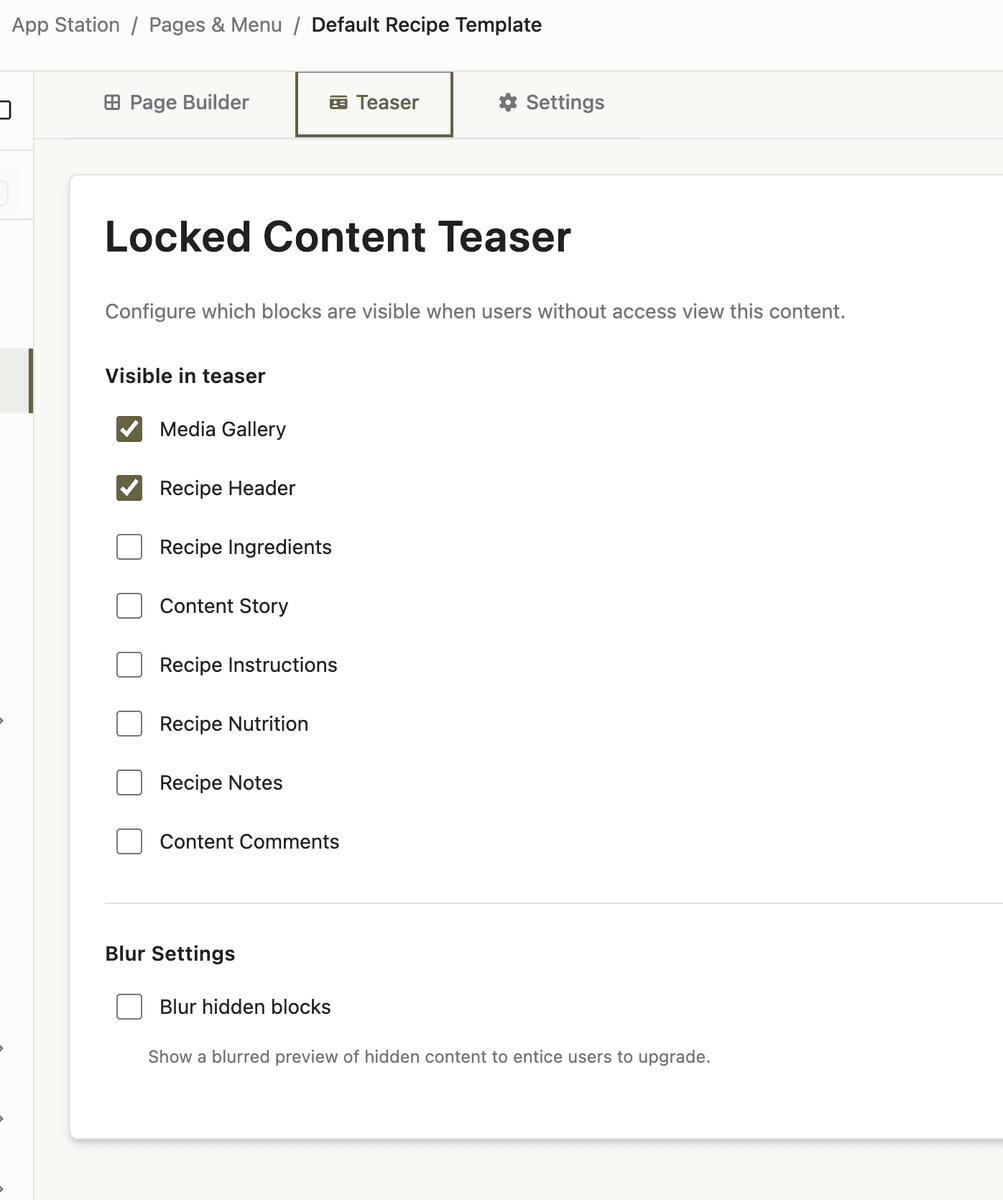
Open App Station → Pages & Menu, select the Content Layouts tab, and edit the layout for the content type you care about (Recipe, Meal Plan, Blog, Resource, Challenge, etc.). This is the same layout system described in the Page Builder post--detail layouts are siblings to page blocks, focused on single-item views.
Open a layout (for example your default Recipe layout).
Click the Teaser tab in the template editor.
Under Locked Content Teaser, use Visible in teaser to check each block you want shown--block names match the blocks on your Blocks tab (Recipe Header, Recipe Meta, Recipe Ingredients, and so on).
Toggle Blur hidden blocks to show a soft, blurred preview of everything else (recommended for recipes) or turn it off to hide those sections completely.
Save; changes apply to every piece of content using that layout when viewed without access.
If you have not customized teaser settings yet, sensible defaults apply per content type--for recipes, typically header and meta visible with hidden sections blurred.
App-wide locked content messaging
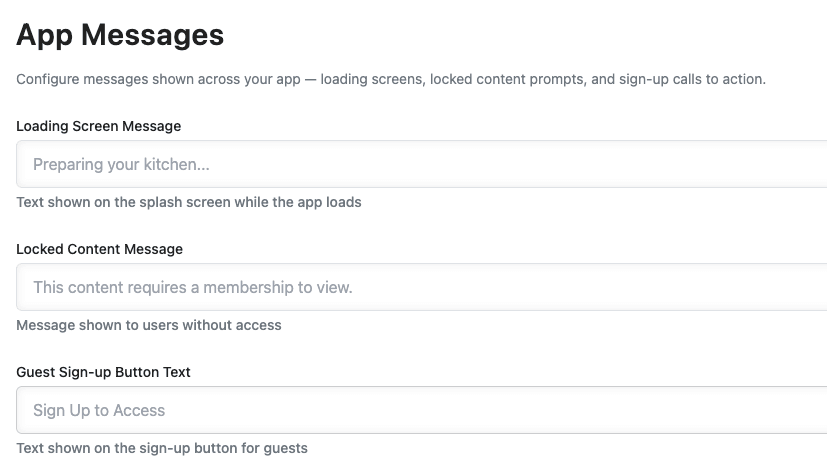
Teaser layout is per content layout. Copy on the upgrade card is global:
App Station → App Settings → General → App Messages
Locked Content Message -- the main line explaining why access is restricted (for example “This recipe is part of our Premium membership.”)
Guest Sign-up Button Text -- label on the primary button for guests (default spirit: sign up to access)
These fields auto-save and appear on teaser views site-wide. Logged-in members without access see upgrade paths tied to the offers that unlock the required level; guests are sent to your upgrade flow with a return URL so they land back on the same recipe after joining or logging in.
Guests vs. members on a lower tier
Guests see the visible blocks you configured, your locked-content message, a sign-up button, and a log-in link (including magic link) that preserves the content URL.
Logged-in members who lack the right level see the same preview plus upgrade options--checkout or offer links when configured--so upgrading feels like one step, not a scavenger hunt.
After they gain access, the same URL renders the full layout with all blocks--no separate “teaser URL.”
Conversion patterns that work
Recipes -- Show header and meta; blur ingredients and steps so the dish looks real but the method stays gated.
Meal plans -- Often header only; the calendar and shopping value sit behind the paywall.
Free preview tier -- Enable Show locked content in lists on a low tier so members browse the catalog and hit teasers on premium items.
Premium tier -- Pair Members Only visibility on high-value content with a teaser layout that does not overshare; adjust layouts per type if meal plans and recipes need different previews.
Teasers work best when your catalog is already populated--whether you add recipes manually or via document import--and access levels clearly map to what each tier unlocks.
Quick-start checklist
Tag premium items Members Only and assign the correct access levels.
On preview-tier access levels, enable Show locked content in lists.
Edit your Recipe (and other) content layouts → Teaser tab → set Visible in teaser and Blur hidden blocks.
Set Locked Content Message and Guest Sign-up Button Text under App Settings → General → App Messages.
Open a locked recipe in a private window (guest) and as a test member on a lower tier; confirm preview, blur, and return-after-login behavior.
Locked content does not have to feel broken. With teasers, you choose exactly how much members see before they are ready to upgrade.