
How many times have you retyped the same honey-mustard dressing across a dozen salads? Component recipes fix that: you author the dressing (or sauce, marinade, spice blend) once as its own recipe, then reference it inside parent recipes with a real quantity--2 tbsp, ½ cup, and so on.
Member Kitchens rolls component nutrition and shopping-list lines into the parent automatically. Update the sub-recipe once, and every parent that uses it stays in sync.
What component recipes are
A component recipe is simply another recipe attached to a parent recipe, with an amount and unit--like an ingredient, but the “ingredient” is a full recipe with its own steps, media, and ingredient library lines.
Typical uses:
Salad + dressing (parent + component)
Main dish + sauce or marinade made ahead
Meal-prep base used across several weekly dinners
Components are one level deep: a component recipe cannot include its own nested components. That keeps scaling, nutrition, and shopping math predictable.
Build the sub-recipe first
Start in App Station → Content Library → Recipes. Create the sub-recipe the same way you would a standalone item--title, ingredients, instructions, media. You can add it manually or bring it in via document import if the source is a PDF, Word file, or WPRM export.
Publish when ready. Members who open the parent recipe will see the component listed in the ingredient area and can tap through to the full sub-recipe page.
Set yield when the batch has a measurable output
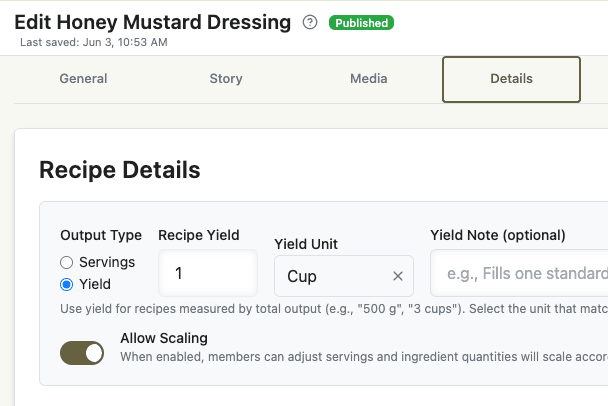
On the sub-recipe, open the Details tab:
Output Type -- choose Servings for classic “feeds four” recipes, or Yield when the recipe makes a measured batch (common for sauces and appliance-style outputs).
Recipe Yield and Yield Unit -- describe what one full batch produces (for example 1 + cup for a dressing that makes one cup).
Yield matters when the parent says “use 2 tbsp of this dressing.” The platform compares your amount to the batch size (2 tbsp ÷ 1 cup) to decide what fraction of the sub-recipe’s ingredients and nutrition count toward the parent. If yield is not set, the system falls back to servings-based math and allows more permissive units--but matching volume to volume (or weight to weight) gives the cleanest results.
Attach components on the parent recipe
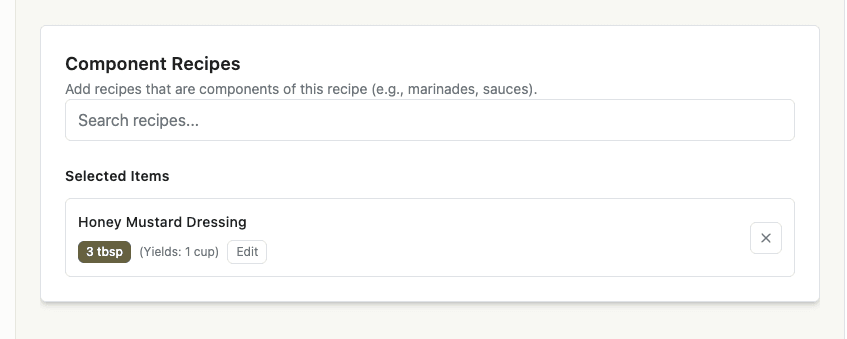
Open the parent recipe’s Ingredients tab. Scroll to Component Recipes (“Add recipes that are components of this recipe--for example marinades, sauces”).
Search and add the sub-recipe.
Set amount and unit (newly added components open for editing immediately; changes auto-save).
Confirm the row shows your quantity and a Yields: … hint when the sub-recipe has yield configured.
Do not duplicate the sub-recipe’s ingredient list on the parent--the component line is the link. The parent’s own ingredients are only what you add outside the component.
At 9 ingredients and 5 steps per recipe, building blocks help--our analysis of 41,000 creator recipes shows where the sweet spot actually lands.
What stays in sync automatically
Nutrition -- Parent recipe nutrition includes a scaled portion of each component’s nutrition (from stored values or calculated from the component’s ingredients). Change the dressing’s ingredients and the salad’s macros update on recalculation.
Shopping lists -- When a parent appears on a meal-plan shopping list, component ingredients are scaled by the same ratio and merged with the parent’s lines--no manual doubling of garlic because the dressing already contains it.
Member-facing detail pages -- On the recipe, the Recipe Ingredients block (part of your content layouts) lists components inline with a distinct style and a link to the sub-recipe. Quantities respect the member’s serving or yield selection on the parent.
Meal plan PDFs -- When members print plans that include recipes with components, referenced sub-recipes can be included so printouts contain the full dressing or sauce instructions, not just the parent page.
Patterns that work well
Volume sauces -- Yield in cups or ml; parent uses tbsp or cups from that batch.
Make-ahead bases -- One “Sunday prep” sub-recipe linked into several weekday mains.
Consistent branding -- Your signature sauce exists once; swap the component on a parent instead of editing ten copies.
Unit discipline -- If the sub-recipe yields weight, reference it with weight on the parent; mixing volume and weight on a yield-based component may be rejected when types clearly conflict.
Need members to replace a whole recipe in a meal plan--not embed a sub-recipe? Use recipe swap options on the Extras tab instead.
Quick-start checklist
Create a sub-recipe (dressing, sauce, etc.) in Content Library.
On Details, set Output Type and Recipe Yield if the batch has a fixed output size.
On the parent’s Ingredients tab, add it under Component Recipes with amount and unit.
Check parent nutrition in the editor after save.
Add the parent to a meal plan and confirm the shopping list includes scaled component ingredients.
Component recipes turn your catalog into modular building blocks--less duplication for you, clearer structure for members, and math you do not have to maintain by hand.