
You built a deep recipe and meal-plan library--and members binge it in the first week, then cancel because they feel “done.” The problem is not too little content; it is too much, all at once, with no shared rhythm that brings them back.
Weekly Schedule fixes that by telling every member on a tier what to cook this week, while you control what stays hidden until the calendar says it is time.
The problem
Overwhelm -- Search and grids expose everything; there is no obvious “start here.”
No shared “now” -- Members on the same plan are not cooking the same week, so community and coaching feel scattered.
Binge then bail -- Power users clear the library, lose novelty, and churn before the next billing cycle.
No prep runway -- Without a visible next week, shopping and meal-prep happen at the last minute--or not at all.
The approach
A Weekly Schedule is a curated timeline tied to one access level per tenant: numbered weeks, each holding recipes, meal plans, resources, or other content. The calendar picks the current week from your Start Date (Week 1 begins); new members drop into whatever week everyone else is on--not week 1 from years ago.
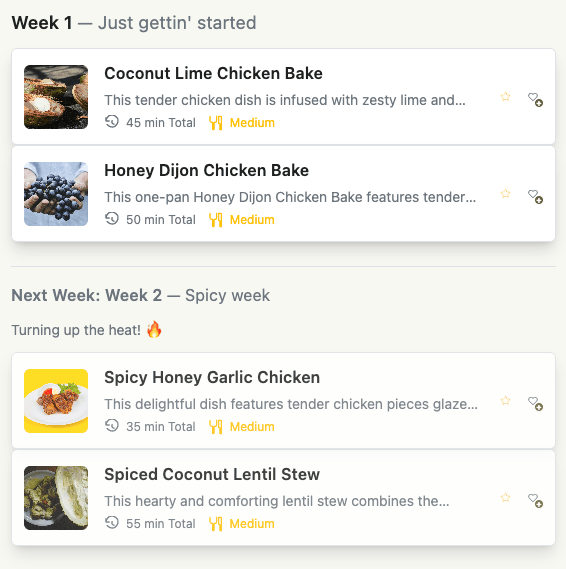
Members see that week through the This Week page-builder block on your home or hub page--not by hunting the full library. The block also shows next week (when configured) so they can shop, customize meal plans, and prep ahead before the week flips.
Journeys are the alternative when each member should start at step 1 on their own timeline (courses, onboarding). Weekly Schedule is for “what is everyone cooking together this week?”
Set it up
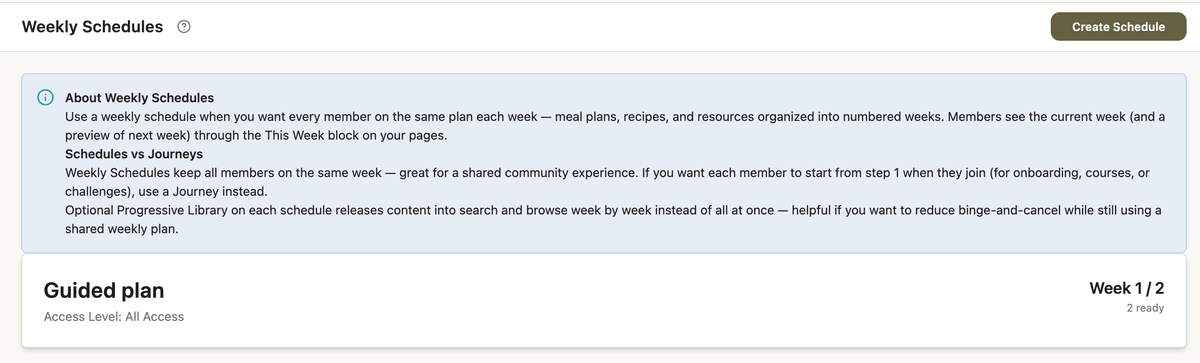
App Station → Weekly Schedules → Create Schedule -- Set Title, Access Level (one schedule per tier), Start Date (Week 1 begins), and Repeat after last week if you want a rotating program (for example 12 weeks that loop).
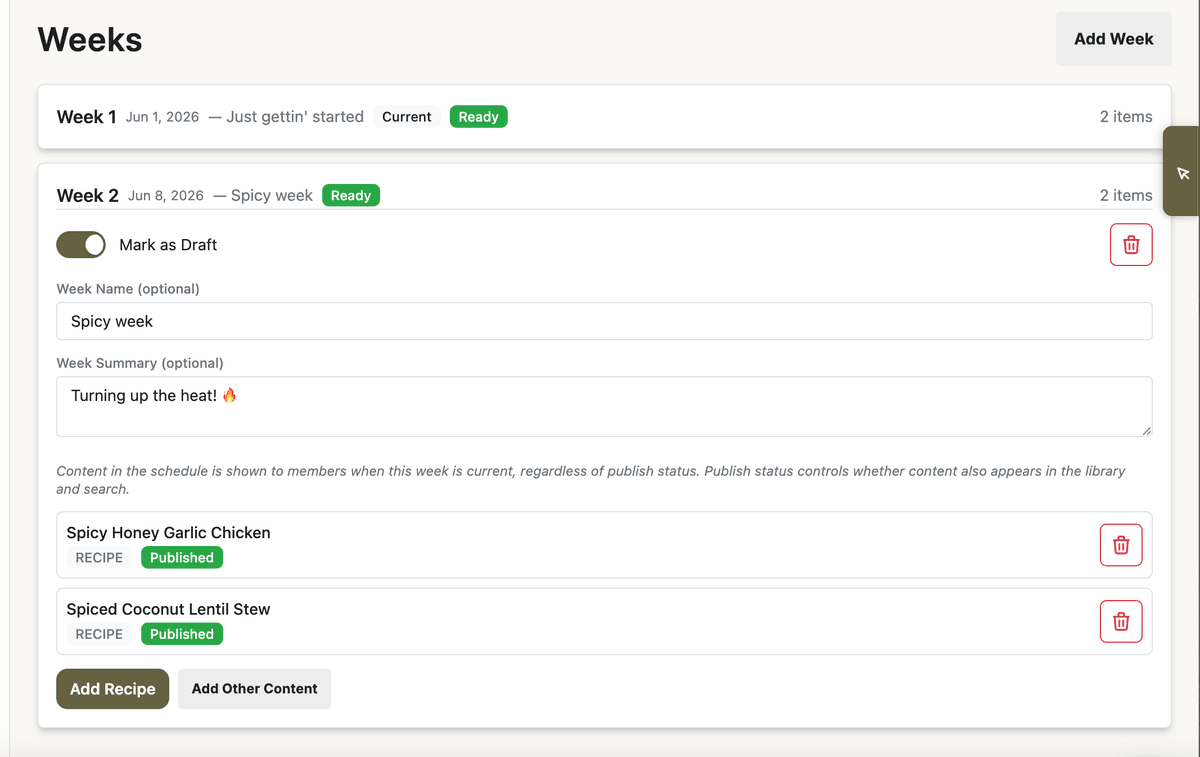
Add Week for each slot -- Optional week title and summary. Leave a week as Draft while you build; switch to Ready when members should see it. Draft weeks are skipped automatically.
Add content to each week -- Meal plan first, then supporting recipes and resources. Reorder items within the week as needed.
App Station → Pages & Menu -- On your home (or dashboard) page, add the This Week block from the Page Builder. Turn on Show Week Number, Show Next Week (recommended for shopping and prep), and set an Empty Message if no schedule applies.
Toggle Active on the schedule so members with that access level receive the current and next visible weeks.
Keep content schedule-only until you are ready
Scheduled content uses two independent visibility systems--the most important concept for avoiding binge:
Schedule visibility -- Content in a week appears in This Week even when it has no publish date. Members can open it from the block while the week is current (or next).
Library visibility -- The same item appears in search, browse, and Content Grid blocks only when its publish date is set and in the past.
Vault-style delivery (anti-binge): Create recipes and meal plans, do not set a publish date, add them only to schedule weeks, and drive discovery through This Week instead of a giant library. Members cannot scroll ahead through a searchable catalog you never exposed.
When you do want library access, set publish dates (often aligned with the week start) so items appear in grids as well as the schedule.
Editors show a schedule link banner when content belongs to a week--so you always know whether an item is schedule-driven, library-driven, or both.
Progressive Library (optional toggle on the schedule): Past weeks can accumulate into the member’s library over time via schedule-based grants. Use Assigned Only visibility and a past publish date on content for that path; the This Week block is unchanged. Turn off the toggle to stop new grants; existing grants remain. This is a drip, not a dump of your entire catalog on day one.
Before and after
Without a weekly rhythm
Members search a full library and cherry-pick at random.
No natural “return next Monday” moment.
Premium content may be visible early if publish dates are wide open.
Community discussion has no default “this week’s plan.”
With Weekly Schedule
Everyone on the tier sees the same current week (and usually next week for prep).
Future weeks stay off the library until you publish or progressive grants apply.
Home page answers “What should I cook now?” in one block.
You refresh content on your cadence--rotating reuse or linear new weeks--without rewriting the app.
Recipes in a weekly schedule can expose swap options so members personalize the shared plan without leaving your cadence.
What to do next
Map access levels to schedules (Basic vs Premium) so each tier gets the right weekly plan.
Place This Week prominently on the page members land on after login.
If some library items stay Members Only for non-subscribers, pair schedule-only vault content with locked content teasers on anything you do expose in browse.
Use the community forum for “this week’s recipes” threads so the social layer matches the calendar.
Schedules set the weekly cadence; Saved Presets curate discovery when members browse the library on their own.